Home Assistant wall tablet: turn an old tablet into a wall panel
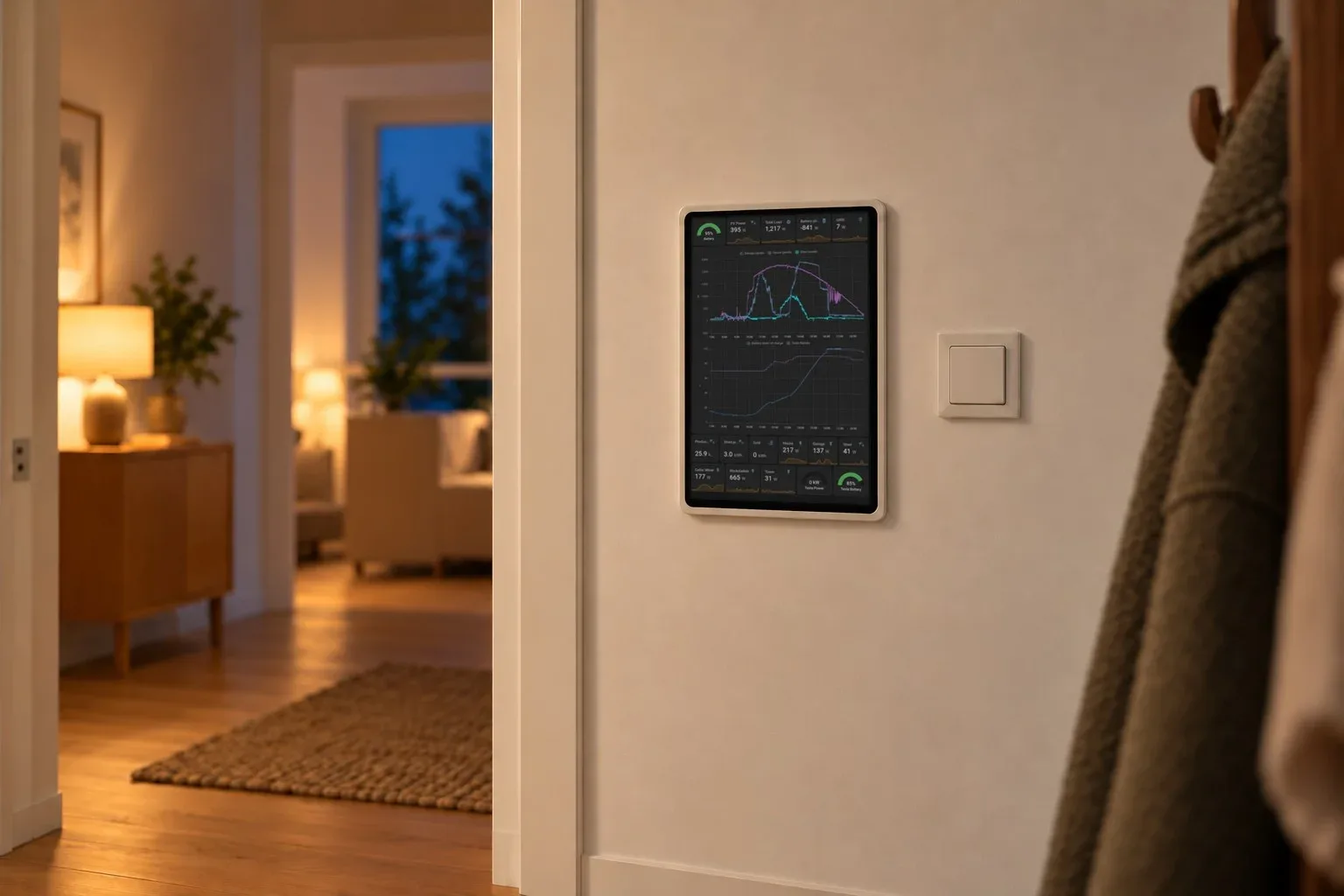
A tablet on the wall becomes a Home Assistant panel through a few settings: one dashboard, nothing else on screen, locked to that one app, a screensaver that wakes when someone comes, and an app that is back by itself after a restart. These are the steps we use. HAkiosk, our kiosk app, does several of them, and we say which.
What you need
- A tablet on Android 8.1 or later, or an iPad on iPadOS 14 or later.
- A wall mount and a charger that stays plugged in.
- The address of the dashboard you want on the wall.
- A separate, non-admin Home Assistant user for the wall, so the tablet is not signed in as you.
Open HAkiosk, enter the dashboard address and sign in as the wall user.
Make the dashboard fit a wall
- Hide the sidebar. In the wall user's Home Assistant profile, turn on "Always hide the sidebar".
- Hide the header. The community kiosk-mode frontend plugin hides the header and sidebar when the address ends in
?kiosk=true. It lives outside Home Assistant and can stop working after a Home Assistant update until it is updated too.
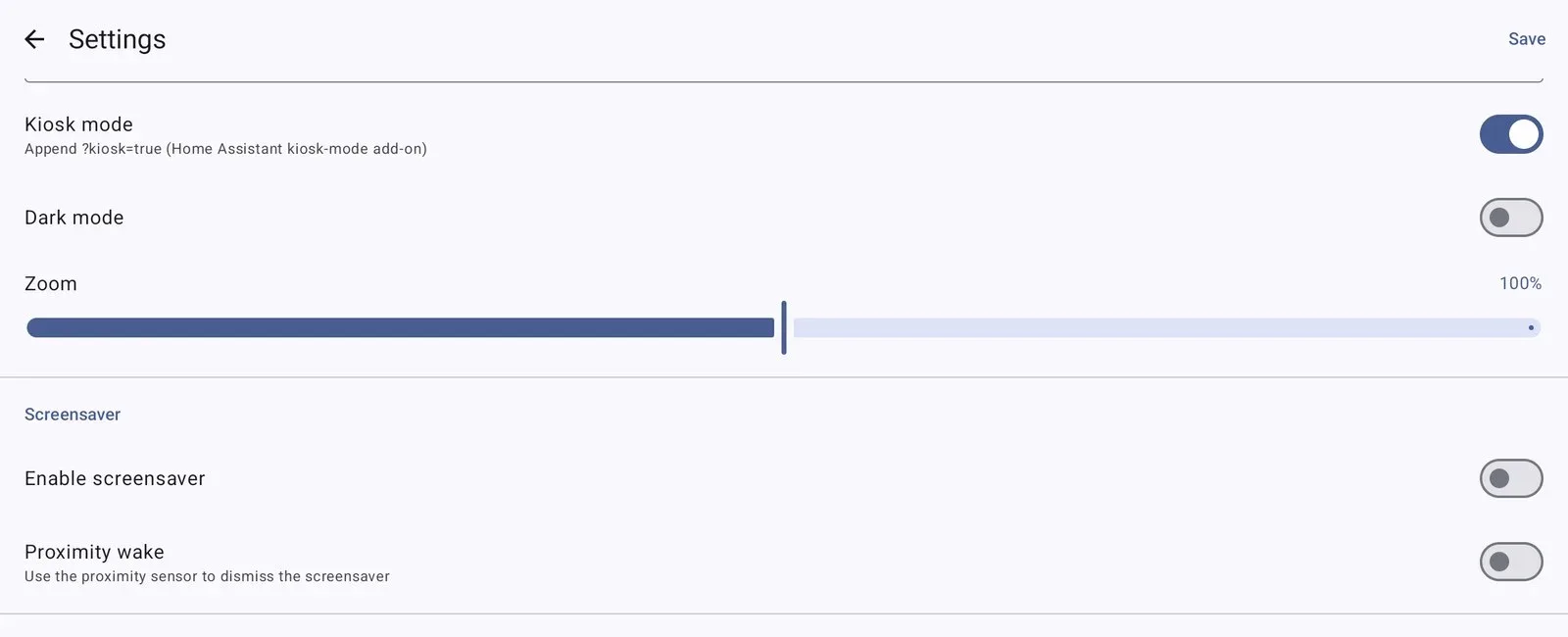
In HAkiosk, the Kiosk mode switch adds ?kiosk=true to the address for you.
Full screen, and keep visitors in the app
HAkiosk shows the dashboard full screen and puts its own settings behind a 4-digit PIN. To keep anyone from leaving the app, add the system's own lock:
- Android: turn on app pinning (usually under Settings › Security; the place varies by maker), open HAkiosk and pin it from the recent-apps screen. HAkiosk's PIN works with it.
- iPad: turn on Guided Access under Settings › Accessibility, open HAkiosk and triple-click the top or Home button. The app walks you through it.
A screensaver, and something to wake it
After an idle time you choose, the screen changes to a clock or goes black. To bring the dashboard back:
- Face wake: the front camera wakes the dashboard when it sees a face. On Android it watches only while the screensaver is up.
- Proximity wake (Android): a hand near the sensor wakes it.
- The room's own sensor (Android): over MQTT, HAkiosk can follow an occupancy topic, so a motion sensor shows or hides the screensaver.
On Android the screensaver can also show photos from an Immich album or a folder on the tablet. An iPad cannot switch its display off from an app; standby is how an iPad sleeps.
The tablet in Home Assistant (Android)
Batteries that live on a charger for years are a common worry in Home Assistant forums. If Home Assistant can see the battery, it can run the charger.
Turn on MQTT in HAkiosk for Android, enter your broker, and switch on "Announce to Home Assistant". The tablet appears as one device with five entities: Battery, Charging, Presence, a Screensaver switch and a Refresh button. No YAML. MQTT stays on your network: it talks to your own broker.
From there:
- Charging: put the charger on a smart plug and switch it on below a battery level you choose and off above another.
- The screen: turn the Screensaver switch on at night, or when the alarm is armed.
- What it shows: the tablet takes commands over MQTT, so an automation can refresh it or send it a different address.
MQTT and Home Assistant discovery are not in the iPad version yet.
After a restart or a wifi drop
On Android, HAkiosk can start itself when the tablet boots. When the network drops it shows an Offline badge with the last page (where the dashboard allows it to be kept) or your own message, and returns to the dashboard when the connection does.
More than one tablet
HAkiosk's Fleet Control, at hakiosk.com/control, pairs each tablet with a 6-digit code or a QR code that is valid for 10 minutes.
From there you can change a tablet's address, zoom and screensaver, refresh or wake it, group tablets, and see a screenshot of what each one shows. Android tablets and iPads sit in the same list.
What our app costs, and what it does not do
On Google Play HAkiosk is free, with a one-time Pro purchase for Fleet Control, the PIN, face wake, scheduled reloads and start on boot. On the App Store it is €4.99 once, with Fleet Control and the PIN included.
What it does not do:
- No MQTT, Home Assistant discovery, photo screensaver or scheduled reloads on iPad yet.
- No Google Photos source; sync an album to a folder on the tablet instead.
- It is not affiliated with Home Assistant or Nabu Casa.